
Picture this: you’re all set to snap the perfect selfie or dive into your latest binge-watch, but your iPhone 11 decides to play hard to get with a black screen. Frustrating, right? Don’t worry; you’re not alone in this tech drama. Many iPhone users face this head-scratching situation, and it can feel like your phone is giving you the silent treatment.
Understanding the iPhone 11 Black Screen Issue
A black screen on the iPhone 11 can stem from various technical issues. Recognizing these problems helps users address them effectively.
Common Causes of Black Screen
Several factors may lead to a black screen on the iPhone 11. Software crashes present a frequent cause, often occurring during updates or app usage. Hardware malfunctions also contribute; for instance, a faulty display or battery can lead to this issue. Heat exposure may damage internal components, resulting in performance problems. Lastly, a simple user mistake, like accidentally pressing the sleep button, might cause the device to appear unresponsive.
Signs Your iPhone 11 Is Unresponsive
Users can identify an unresponsive iPhone 11 through specific signs. A completely black screen signifies potential trouble, especially if it doesn’t respond to touch commands. Another clue involves the absence of notifications or alerts; failing to light up when receiving messages indicates an issue. Furthermore, an inability to perform a force restart typically reveals deeper problems. Lastly, if the device shows no signs of charging despite being plugged in, it suggests an urgent need for attention.
Basic Troubleshooting Steps
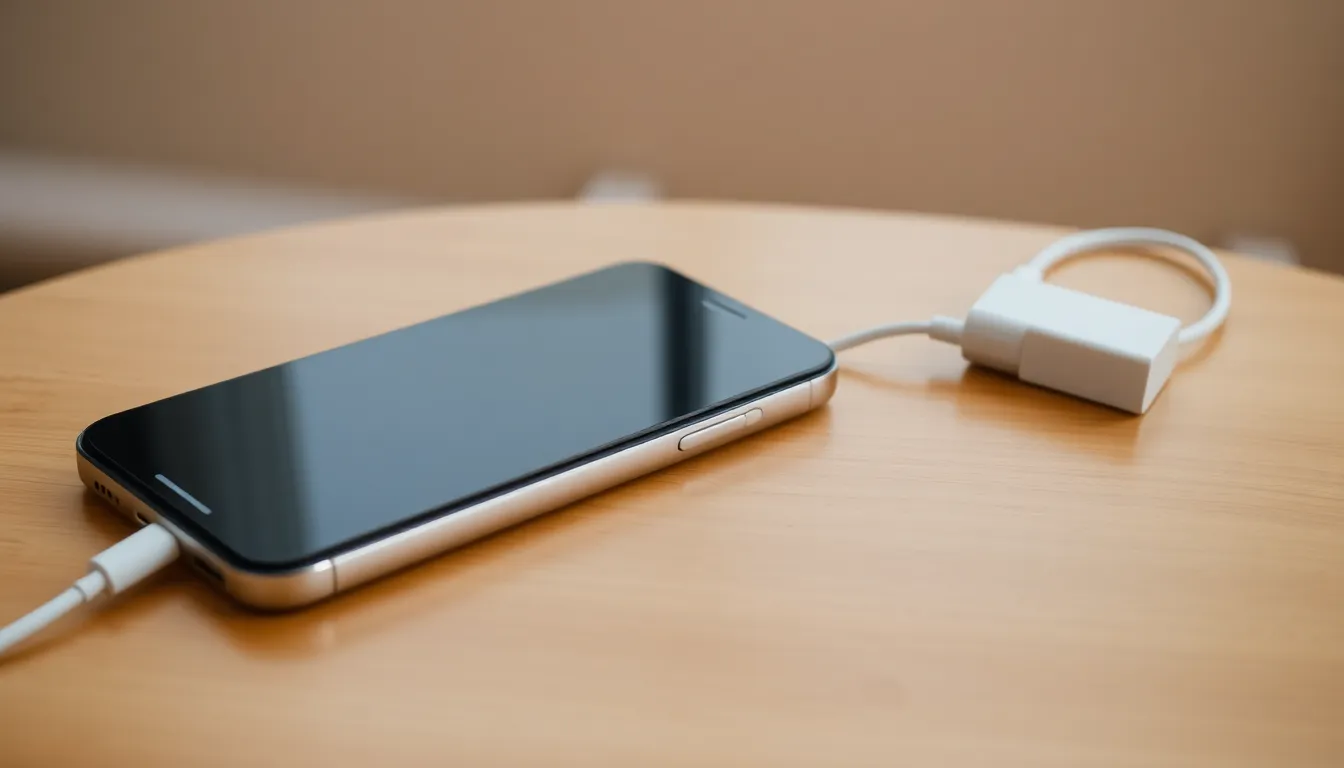
This section outlines essential methods to regain control of an iPhone 11 with a black screen. These troubleshooting techniques can help address the issue quickly.
Hard Reset Your iPhone 11
Begin by performing a hard reset to fix the black screen. Press and quickly release the Volume Up button, followed by pressing and quickly releasing the Volume Down button. Afterward, press and hold the Side button until the Apple logo appears. This process can resolve minor software glitches causing the display problem. If the phone restarts successfully, the screen should illuminate, allowing further use of the device.
Charging Your Device
Check the charging status of the iPhone 11. Connect the device to a reliable power source using an original or certified charging cable. Look for the charging icon after a few minutes. If the screen remains black, consider using a different power adapter or cable to eliminate any accessory-related issues. The importance of ensuring that the device has enough charge cannot be overstated, as a low battery can contribute to a non-responsive screen.
Advanced Solutions
Advanced options exist for fixing an iPhone 11 with a black screen. Users can utilize recovery mode and iTunes for more complex issues.
Using Recovery Mode
Recovery mode provides a way to troubleshoot deeper software problems. To enter this mode, connect the iPhone 11 to a computer using a USB cable. Press the Volume Up button quickly, then the Volume Down button, followed by pressing and holding the Side button until the recovery mode screen appears. This screen presents options to update or restore the device. Choosing update may resolve issues without deleting data, while restore erases the device completely. Thus, opting for the correct choice based on data importance proves key.
Restoring Your iPhone via iTunes
Restoring through iTunes can resolve persistent issues after entering recovery mode. Starting with a computer, open iTunes and ensure it’s updated to the latest version. Once connected, select the iPhone 11 from the device list. Users see the option to restore or update. Selecting restore removes all content but often fixes lingering software problems. Additionally, backing up data before initiating restoration is crucial to avoid permanent data loss. This method effectively addresses software-related malfunctions and provides a fresh start.
When to Seek Professional Help
Sometimes, issues with the iPhone 11 extend beyond basic troubleshooting. Persistent black screens often indicate severe hardware malfunctions. Unresponsive devices can lead to additional complications that basic fixes won’t resolve. If the screen remains black despite numerous restart attempts, seeking professional help becomes necessary.
In situations where the iPhone won’t charge or show signs of life, immediate action is crucial. Users experiencing overheating during charging should consult a technician for safety. Signs of physical damage, like cracks or water exposure, highlight the need for expert intervention.
Just as important, unusual sounds or vibrations when attempting to power on the device suggest internal problems. Malfunctions related to screen functionality can stem from faulty displays or other hardware components. In these cases, diagnostic tools used by professionals can provide accurate assessments.
Reputable service centers offer assistance with both hardware repairs and software issues. Users should ensure that the service they seek has experience with Apple devices for optimal results. Utilizing authorized repair services safeguards warranties and promotes reliable repairs.
Finally, understanding that timely action prevents minor issues from escalating is essential. Ignoring persistent problems can lead to a complete device failure, resulting in greater inconvenience. Prioritizing a professional evaluation when troubleshooting measures fail protects users and their devices.
Dealing with a black screen on an iPhone 11 can be frustrating but understanding the potential causes and solutions empowers users to take action. From performing a hard reset to checking the charging status or using recovery mode, there are several steps one can take to resolve the issue.
If these methods don’t work and the device remains unresponsive, seeking professional help is crucial. Qualified technicians can diagnose hardware problems that may require specialized attention. By addressing these issues promptly, users can ensure their iPhone 11 remains functional and reliable for everyday use.